AlwaysStrong restores Google Play Integrity (STRONG) on rooted Android 10+ devices by bundling TEESimulator‑RS and PlayIntegrityFork into one Magisk/KernelSU/APatch module; ensure you have a Zygisk Next/ReZygisk/NeoZygisk implementation and Android SDK 29+ before installing.
This guide explains what AlwaysStrong is, who needs it, and how to download, install, use, and troubleshoot it.
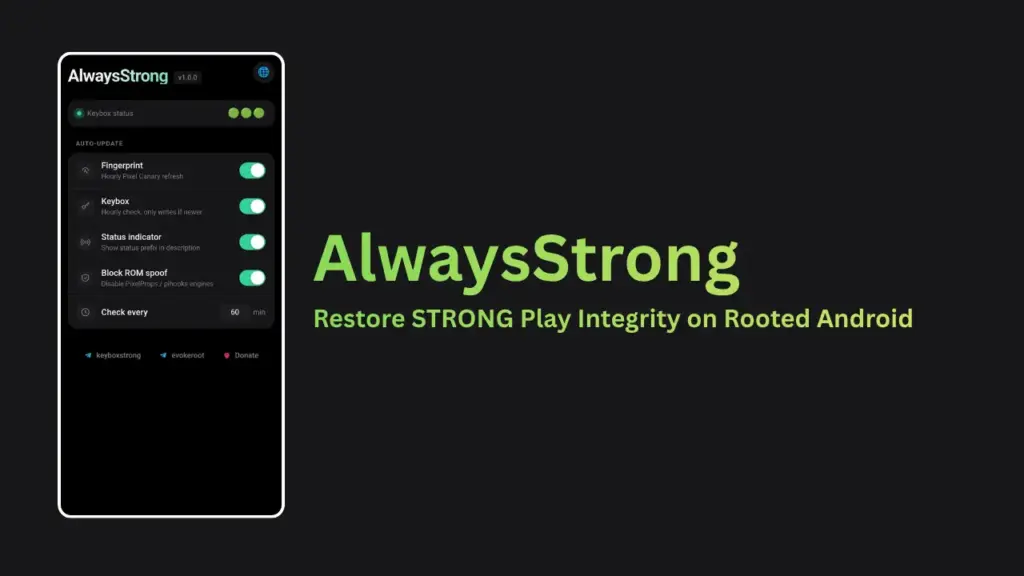
Table of Contents
What is AlwaysStrong
AlwaysStrong is a single module that combines TEESimulator‑RS and PlayIntegrityFork to emulate secure hardware conditions required by apps that check Google Play Integrity. It aims to produce STRONG Play Integritystatus on modified Android systems.
Who should use it
- Users with rooted Android devices who face Play Integrity failures (banking apps, some games, Google services).
- Advanced users comfortable with Magisk, KernelSU, or APatch and custom modules.
Requirements
- Android 10 or newer (SDK 29+).
- One of the following with a Zygisk implementation installed:
Key features
- One‑flash installation: no need to install TEESimulator and PlayIntegrityFork separately.
- Automated wiring between components so apps see a consistent integrity environment.
Download
- Get the latest release from the official GitHub repository (Releases section of the AlwaysStrong repo).
- Download the module ZIP to your device storage.
Install (step‑by‑step)
- Backup your device and note how to remove modules in recovery.
- Place the downloaded AlwaysStrong ZIP in internal storage.
- Open Magisk Manager (or your module manager for KernelSU/APatch).
- Choose Install from storage and select the ZIP.
- Reboot the device to apply changes.
- Verify Play Integrity status in affected apps; some require clearing app data or reinstalling.
How to use and verify
- After reboot, open the apps that previously failed integrity checks.
- If an app still fails, clear its cache/data and retry. Use Play Services logs or integrity check tools if available.
Troubleshooting
- Module not visible: re-download the ZIP and confirm file integrity.
- Bootloop after install: boot to recovery and remove the AlwaysStrong module (custom recovery or Magisk’s module removal). Reboot.
- Detection by apps: prefer standalone Zygisk Next/ReZygisk/NeoZygisk and follow root‑hide best practices (denylist, LSPosed/HMA where applicable).
Credits
AlwaysStrong project and contributors on GitHub; underlying projects TEESimulator‑RS and PlayIntegrityFork. See the repository README for full credits.
FAQs
No Android 10+ (SDK 29) is required.
Conclusion
AlwaysStrong offers a practical, one‑flash solution to restore STRONG Play Integrity on rooted Android 10+ devices by bundling TEESimulator‑RS and PlayIntegrityFork into a single module. When the module is installed on a device that meets the requirements and uses a robust Zygisk implementation, many users see improved compatibility with apps that previously failed integrity checks.
In summary:
- Prepare: back up your device and confirm Android 10+ and a supported root environment.
- Install: download the official module ZIP and flash it via Magisk, KernelSU, or APatch with Zygisk Next/ReZygisk/NeoZygisk.
- Verify and troubleshoot: clear app data, use denylist techniques, and remove the module from recovery if needed.
Use caution and keep a recovery plan ready. If you run into persistent detection or boot issues, revert the module and consult the project README or community threads for device‑specific tips.
Your feedback helps others choose the right approach, so leave a comment below with your device model, Android version, and the result after trying AlwaysStrong.