Ever wondered how to give your Android device a fresh, modern look inspired by Samsung’s One UI? The Magisk One UI 7 Launcher lets you do just that by seamlessly transforming your home screen and interface on AOSP Base Custom Rom.
In this post, you will discover what this launcher does, its standout features and requirements, and follow our detailed installation guide. We’ve also included troubleshooting tips and a handy FAQ section to help you overcome common issues. Whether you’re a veteran modder or new to Magisk modules, this guide is designed to walk you through every step of the process.
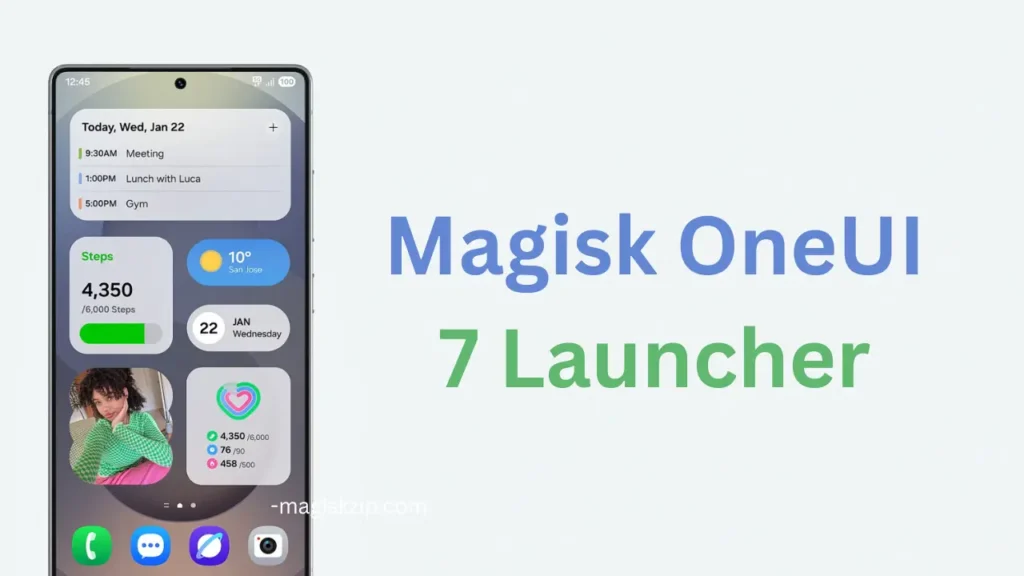
Table of Contents
What Is Magisk One UI 7 Launcher?
The Magisk One UI 7 Launcher is a customizable Magisk module that incorporates the design language and elements of Samsung’s One UI 7 into Android devices running on AOSP Base Custom Rom. It enables users to achieve the modern One UI aesthetic without needing an official Samsung device. This port is built as a Magisk module and works in tandem with other One UI modules (such as the Home, Core, and Apps modules) to deliver a cohesive user interface experience.
Features
- One UI Design Elements: Get a taste of Samsung’s One UI 7 style with a refined home screen experience.
- Modular Installation: Designed as a Magisk module, it easily integrates with your device’s root system.
- AOSP Compatibility: Best results are achieved on Android 15 AOSP ROMs, offering a clean and streamlined interface.
- Customizable Options: Personalize your icon shapes and other UI elements to match the One UI style.
- Seamless Integration: Works in tandem with additional One UI modules (Home, Core, and Apps) to provide a complete user experience.
Requirements
Before you begin the installation process, ensure that your device meets the following requirements:
- Operating System: This module is built specifically for AOSP-based ROMs; it may not work as intended on devices running the official One UI system.
- Root Access: Your device must be rooted via Magisk.
- Magisk Installed: Confirm that Magisk is set up correctly on your device.
- File Manager: A reliable file explorer (for example, MiXplorer) to move and edit the prop file if needed.
- Download Files: You will need to download the following from provided links:
- The optionals.prop file (to be placed in the root folder of your device storage, often labeled as “0”)
- One UI Home Module
- One UI Core Module
- One UI Apps Module
Using these components, the module transforms your launcher experience while maintaining flexibility for further customization.
Installation Guide: Step by Step
Follow these steps carefully to install and configure the Magisk One UI 7 Launcher:
Step 1. Prepare Your Device
- Backup: Always back up your data before modifying system files.
- Confirm Root Status: Verify that Magisk is installed and that your device is rooted.
- Download Files: Download the required files (optionals.prop, Home, Core, and Apps modules) from trusted sources or the links provided in the original forum thread.
Step 2. Move the Prop File
- Using a file manager like MiXplorer, locate the downloaded optionals.prop file.
- Important: Move the file to the root directory of your device storage (often labeled as “0” or “root” folder). If you encounter issues (for example, if you cannot move the file), you may need to remount your internal storage as read-write using ADB commands.
Step 3. Install the One UI Home Module
- Open the Magisk Manager app.
- Navigate to the Modules section and select “Install from Storage.”
- Choose the One UI Home Module and confirm the installation.
- Tip: Once installed, verify that the module appears in the module list.
Step 4. Install the One UI Core Module
- Following the same steps as above, install the One UI Core Module.
- After installation, reboot your device for changes to take effect.
Step 5. Install the One UI Apps Module
- Finally, install the One UI Apps Module using Magisk Manager.
- Reboot your device one more time after installing.
Step 6. Configure Launcher Settings
- Once your device has restarted, go to your launcher settings.
- Set the One UI Launcher as your default home application.
- Customization Tip: If available, adjust the icon shape settings to match Samsung’s default style for a more authentic One UI look.
Congratulations! Your device should now feature the One UI 7 aesthetic via the Magisk module installation.
Troubleshooting
If you run into problems during or after the installation, try the following fixes:
1. Issue: Launcher Crashing or Black Screen
- Solution: Ensure that the optionals.prop file is placed correctly in the root folder. If necessary, use ADB to remount your internal storage as read-write.
- Tip: Clear your device cache from recovery mode and reboot.
2. Issue: Flashlight Error or Camera Message
- Solution: Some users have reported the camera or flashlight showing “in use” even when they are not active. If this occurs, try rebooting your device or wiping the cache from recovery mode.
- Tip: If the camera app crashes, verify that the prop file was not modified incorrectly.
3. Issue: Inability to Edit or Save the Prop File
- Solution: Use a reliable file editor (such as the built-in “Code Editor” in MiXplorer) and ensure that your device’s storage is writable. Remounting your storage using ADB may be necessary.
- Note: Double-check the instructions on the original forum if you need specific code changes.
General Tip: If you encounter any error messages during module installation, revisit the steps or check online communities like XDA Forums for community-driven fixes.
FAQs
The module is designed for Android 15 AOSP ROMs. While some One UI elements may work on official One UI devices, the best results are seen on AOSP-based ROMs.
First, verify that you have correctly moved the optionals.prop file to the root storage and that your device is mounted with read-write permissions. Clearing the cache and rebooting might also resolve the issue.
Since the installation is modular, you can uninstall the modules via Magisk Manager. It is always recommended to have a backup before making system changes.
Yes, you can configure icon shapes in the settings. However, note that some users have reported that the blur effect may not function as expected on all devices.
Note: For more details and updates about the Magisk One UI 7 Launcher, visit the original XDA thread at XDA Forums. Full credit goes to the XDA community for their hard work and shared resources!
Check this also: Top 28 Must-Have Magisk Modules
Conclusion
We hope this guide has provided you with all the information you need to install and enjoy the Magisk One UI 7 Launcher. This module is a fantastic way to refresh your device’s interface with a modern, One UI style—especially if you’re running AOSP base Custom Rom.
If you have any questions or encounter any issues, please feel free to leave a comment below. Your feedback and questions add tremendous value to our community, and we’re here to help you every step of the way.

I’ve placed the prop file in the root (/) directory after changing it to read-write (rw), and also in the 0 directory, but it still fails to install.
Thank you for sharing your experience. To ensure the installation is successful, it’s important to verify that your setup meets the necessary requirements. Make sure you are using an AOSP-based ROM, as this is essential for compatibility. Additionally, for the best results, your device should be running on Android 15. If these requirements are not fulfilled, it could be the reason behind the issue.
One ui 7 samsung m11
On magisk
One ui 8 and one ui 7 launcher