When you put your phone on a charger or leave it sitting on your desk, it usually sits there with a blank black screen. With modern apps, you can easily turn that idle screen into a stylish, useful smart display.
In this guide, we will dive deep into StandBy Mode: Clock & Widgets, one of the most popular Android apps inspired by Apple’s iOS StandBy feature. You will learn everything about what this app does, its standout features, system requirements, step-by-step installation instructions, daily usage tips, troubleshooting solutions, and answers to common questions.
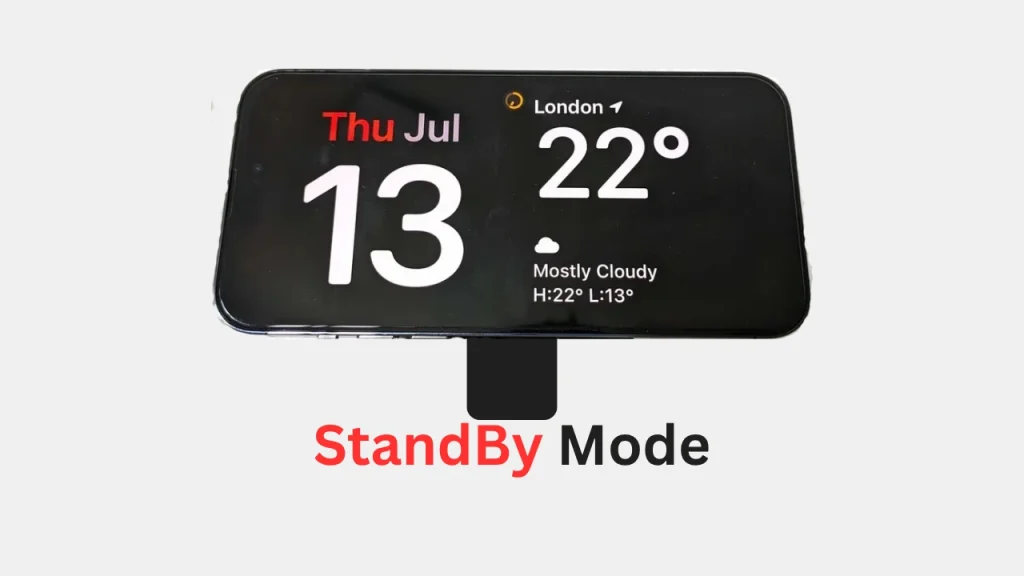
Table of Contents
What is StandBy Mode: Clock & Widgets?
StandBy Mode: Clock & Widgets is an Android application developed by Zetabit Tecnologia that transforms your phone or tablet into an interactive desk or bedside smart clock. Originally inspired by the StandBy feature introduced in Apple’s iOS 17, this app brings a similar always-on screen experience to Android devices, but with significantly higher customization options.
Whenever you connect your phone to a charger or place it horizontally on a stand, the app can automatically activate a full-screen display. It can show high-contrast digital clocks, vintage flip clocks, live weather updates, music player controls, custom photo slideshows, and productivity widgets. Whether you need a bedside clock at night or a focus dashboard for your work desk, StandBy Mode gives your charging phone a clear purpose without draining battery or causing screen burn-in.
Features of StandBy Mode: Clock & Widgets
This app comes packed with helpful tools designed to make your charging screen both useful and eye-catching. Here are the core features you can explore:
- Over 100 Customizable Clocks: Choose from a massive collection of clock designs, including retro flip clocks, neon glows, matrix codes, analog hands, big pixel digits, day clocks, and minimalist AMOLED layouts. You can tweak fonts, accent colors, and background styles to match your room setup.
- Flexible Duo and Quad Widget Layouts: Arrange two or four widgets side by side on your screen. You can display calendars, weather forecasts, countdown timers, world clocks, and even widgets from third-party Android apps installed on your device.
- Smart Auto-Launch on Charging: Set the app to open automatically as soon as you plug in your charging cable or place your phone on a wireless charging dock. You can also restrict auto-launch to landscape orientation so it only triggers when docked horizontally.
- Universal Music Player and Lyrics: Control playback for Spotify, YouTube Music, Apple Music, and other popular streaming apps right from your standby screen. For supported tracks, you can view real-time synchronized lyrics while listening hands-free.
- Vibes Radio for Focus: Built-in ambient radio stations featuring lo-fi beats, rain sounds, and study music designed to keep you focused while working or help you relax before bed.
- Smart Digital Photo Frame: Display your personal photo collection straight from your gallery or cloud storage. The app features face-aware smart cropping to ensure faces remain properly centered in the frame.
- Custom Spaces for Work and Rest: Create tailored screen profiles, such as Home, Focus, or Night, and quickly switch between them depending on where you are using your phone.
- Night Mode and OLED Burn-in Protection: Includes dim red tint options for low-light night viewing so your screen does not hurt your eyes in a dark room. Built-in pixel-shifting algorithms protect AMOLED and OLED screens from permanent image burn-in during long charging sessions.
System Requirements
To run StandBy Mode smoothly on your device, ensure your hardware and software meet the following basic requirements:
- Operating System: Android 8.0 or higher (works on both Android smartphones and tablets).
- Storage Space: At least 50 MB of free internal storage for installation and app cache.
- RAM: Minimum 2 GB of RAM for smooth animations and widget switching.
- Internet Connection: Required for initial download, live weather updates, radio streaming, and live lyrics retrieval.
- App Permissions: Requires permission to display over other apps (overlay permission), notification access (for media controls), and location access (for accurate local weather reports).
How to Download StandBy Mode
Downloading the app is simple and safe when done through official sources. Follow these steps:
- Open the Google Play Store app on your Android device.
- Tap the search bar at the top of the screen.
- Type StandBy Mode: Clock & Widgets into the search bar and press search.
- Locate the official app developed by Zetabit Tecnologia from the search results.
- Tap on the app listing to open the download page.
How to Install StandBy Mode
Once you are on the app page in the Google Play Store, installation takes just a minute:
- Tap the green Install button.
- Wait for the download process to complete. The app size is lightweight, so it should finish quickly.
- After the download completes, your Android device will automatically install the package.
- Tap Open to launch the app for the first time, or locate the app icon on your home screen or app drawer.
How to Use StandBy Mode
Getting started with StandBy Mode is straightforward once you grant the necessary permissions:
- Initial Setup and Permissions: When you first launch the app, follow the on-screen prompts to enable overlay permissions and notification access. These permissions allow the app to appear automatically while charging and display music controls.
- Select Your Preferred Clock Style: Swipe through the available clock faces or tap the customization menu to choose your favorite look, such as a retro flip clock or modern digital display.
- Configure Duo or Quad Panels: Tap on panel slots to select what you want to see side-by-side. You can pair a large clock with a weather widget or combine music playback with a calendar event list.
- Enable Auto-Launch on Charge: Go to the app settings menu and toggle on the option to automatically launch when charging. You can choose whether it activates in any position or only when held horizontally in landscape mode.
- Set Up Night Mode: Customize the bedtime behavior by selecting a red tint and ultra-low brightness setting, ensuring your phone screen stays gentle on the eyes while resting on your nightstand.
Troubleshooting
If you encounter any issues while using the app, try these practical fixes:
- App does not open automatically when plugged in: Check your device settings to make sure system overlay permissions are enabled for StandBy Mode. Also, disable strict battery optimization for the app so Android does not close it in the background.
- Persistent notification bar icon: Android requires a persistent notification for foreground services to keep auto-launch and music controls active. You can manage how subtle this notification appears in your system notification settings under app management.
- Music controls or lyrics are not working: Make sure notification access is enabled in your phone settings and that your music app (like Spotify) is currently running or paused in the background.
- Weather display is incorrect or blank: Verify that location permissions are granted to the app and that your device has an active internet connection.
- Screen brightness is too bright at night: Ensure Night Mode is enabled in the app settings, which applies a red filter and lowers the screen brightness automatically.
FAQs
Yes, the app is free to download and includes a wide range of free clocks and widgets. Optional in-app purchases are available to unlock additional premium clock designs, advanced customization tools, and an ad-free experience.
The app includes built-in pixel-shifting technology designed specifically for OLED and AMOLED displays. It periodically shifts visual elements by a few pixels to prevent static images from causing screen burn-in.
Yes, StandBy Mode supports third-party Android widgets. You can place widgets from your favourite weather, productivity, or notes apps directly onto the StandBy layout.
The app processes functions locally on your phone. It prioritizes privacy and security, using standard encrypted data transfers solely for essential app functionality like weather updates.
Yes, the app fully supports Android tablets and scales its layout gracefully, allowing you to use Quad Mode for four side-by-side widgets on larger screens.
Conclusion
StandBy Mode: Clock & Widgets is an excellent app for anyone who wants to turn an idle Android device into a modern, functional desk or bedside display. With its massive selection of clock styles, flexible widget layouts, ambient background music, and smart charging triggers, it gives your charging phone a second life. By following the setup steps and tips in this guide, you can easily build your ideal personal display screen.
What do you think of StandBy Mode? Which clock face or widget combination is your favorite? Please leave a comment below and share your thoughts with us!