In this blog post, we are going to look closely at Essentials, one of the most useful system customization tools available for Android smartphones.
You will learn what Essentials is, the features it offers, system requirements, where to download it safely, how to install and use it, troubleshooting tips for common issues, and answers to frequently asked questions.
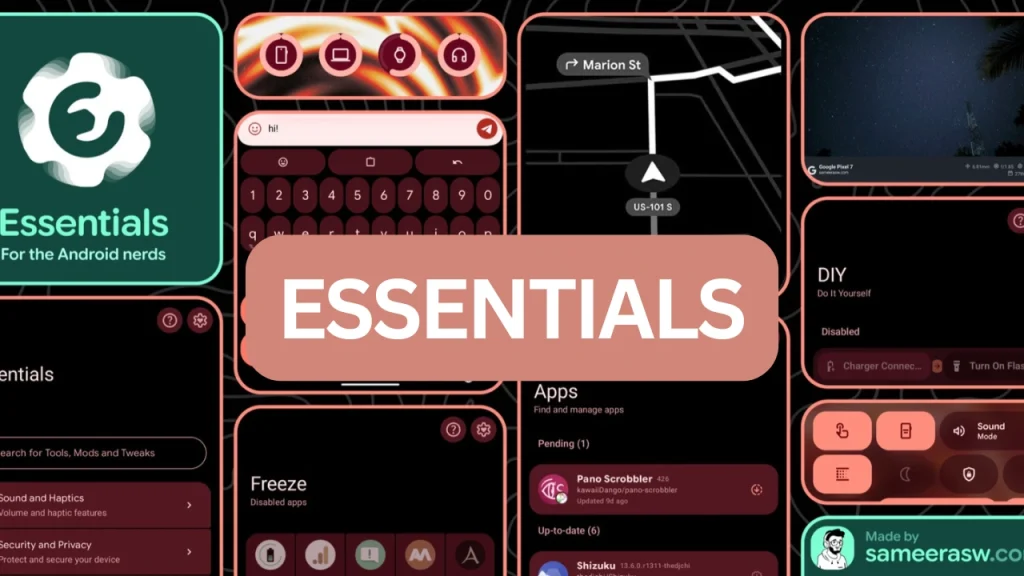
Table of Contents
What is Essentials?
Essentials is an open-source Android application developed by Sameera Wijenayake. It serves as an all-in-one toolbox created to customize, enhance, and optimize stock Android devices. While it is built to work seamlessly across various Android phone brands, it offers extra optimizations specifically tailored for Google Pixel devices.
Unlike traditional system mods that require permanent changes to your system software, Essentials operates safely using either Shizuku on non-rooted devices or direct Root access on rooted phones. It allows you to tweak system settings, remap physical hardware buttons, customize quick settings tiles, save battery life, and personalize your phone interface. You can explore the full source code on the official Essentials GitHub Repository.
Features of Essentials
Essentials includes over 25 individual customization tools and system utilities, including:
- Google Maps Power Saver: Reduces screen power draw during turn-by-turn navigation without missing directions.
- Hardware Button Remapping: Assigns custom single-press, double-press, or long-press shortcuts to your volume and power keys.
- App Freezing and Suspension: Pauses power-draining background applications to improve system speed and conserve battery life.
- Interface and Status Bar Customization: Hides or modifies status bar icons, gesture bar lines, animation scales, and system fonts.
- Dynamic Notification Lighting: Displays customizable edge lighting effects around your screen whenever new notifications arrive.
- Custom Quick Settings Tiles: Adds tiles for Private DNS cycling, battery charge limit controls, system UI restarts, screen keep-awake (caffeinate), and flashlight modes.
- WearOS Integration: Connects with smartwatches using the Essentials WearOS Project to mirror sound modes, view combined device battery stats, and send remote controls.
- DIY Automations: Sets up simple automated rules based on Wi-Fi status, Bluetooth connections, low-power states, and device volume.
- Camera Watermark and Utility Widgets: Adds watermarks to photos and provides home screen widgets for system info.
Requirements
To run Essentials smoothly on your phone, ensure your setup meets these system requirements:
- Operating System: Android 8.0 (Oreo) or higher (fully compatible with Android 14, 15, and 16).
- Supported Hardware: Compatible with most Android smartphones, with dedicated optimizations for Google Pixel devices.
- Shell Provider: Either Shizuku for non-rooted devices or direct Root access using Magisk, KernelSU, or APatch.
- Required Permissions: Accessibility Service, Notification Listener, and Write Secure Settings (granted inside the app or through ADB).
Download
Essentials is an open-source tool distributed directly as an APK package. Because it relies on system-level permissions, it is not published on the Google Play Store.
You can safely download the latest APK file from these official channels:
- Download from the Official Essentials Website.
- Download release builds from the Essentials GitHub Releases Page.
Always download from official sources to ensure you get authentic and safe software.
Install
Installing Essentials requires a few extra steps because modern Android security flags sideloaded APKs that request sensitive permissions. Follow these steps to complete the installation:
- Turn Off Advanced Protection (Google Pixel devices only): If you have Advanced Protection active, navigate to Settings, select Security, go to Advanced Protection, and disable it temporarily.
- Pause Play Protect Scanning: Open the Google Play Store, tap your profile icon in the upper right corner, choose Play Protect, tap the gear icon, and switch off “Scan apps with Play Protect.”
- Install the APK File: Open your phone file manager, locate the downloaded Essentials APK, tap on it, and confirm the installation.
- Re-Enable Play Protect: After installation completes, go back into Play Store settings and turn Google Play Protect back on for security.
- Connect Your Shell Provider: Open the Essentials app and choose your service mode. If you are not rooted, launch the Shizuku app and start the Shizuku service via Wireless Debugging or ADB.
How to Use
Using Essentials is straightforward thanks to its clean interface:
- Open the Application: Launch Essentials from your app drawer.
- Grant Requested Permissions: Select any feature you wish to activate. The app will show direct buttons to help you grant required permissions, such as Accessibility or Notification Listener access.
- Enable Features: Toggle on options like Button Remapping, Notification Lighting, or Google Maps Power Saving with a single click.
- Configure Quick Settings: Swipe down your notification shade, tap the edit pen icon, and pull Essentials tiles into your active quick settings board.
- Set Up Custom Rules: Open the DIY Automations tab to define rule triggers for battery thresholds, volume changes, or network connections.
Credit
Essentials is developed and maintained by Sameera Wijenayake (sameerasw).
Troubleshoot
If you encounter issues while running Essentials, consider these solutions:
- Blocked Sideloading Warning: Ensure Play Protect scanning and Pixel Advanced Protection are temporarily turned off while installing the APK.
- Shizuku Service Disconnecting: Turn off battery optimization for both Essentials and Shizuku so Android does not kill them in the background.
- Accessibility Service Resetting: Some phone manufacturers aggressively stop background services. Exclude Essentials from power-saving profiles in your system settings.
- Quick Settings Tile Not Responding: Long press the tile to enter its settings screen and confirm all required system permissions have been granted.
- Feature Unavailability: Confirm whether the feature requires Root access or hardware specific to Google Pixel phones.
FAQs
Yes, Essentials is open-source software. You can inspect all source code on GitHub to verify how data and permissions are handled.
No, root access is not mandatory. Essentials works on non-rooted devices using Shizuku, although rooted users can grant root permissions directly if preferred.
Essentials uses elevated Android system permissions to modify settings and remap buttons, which falls outside standard Play Store policies for third-party utilities.
Yes, the vast majority of features function properly across all major Android manufacturers running Android 8.0 or newer.
Conclusion
Essentials is an impressive customization app that gives Android users detailed control over device performance, hardware buttons, interface design, and battery efficiency without needing full custom ROMs. Whether you want subtle notification lighting, quick settings toggles, or automated battery optimizations, Essentials brings everything into one unified package.
What feature of Essentials are you looking forward to trying on your device? Please leave a comment below to share your experience or ask any questions!