Welcome to this complete guide on the Automate app for Android, developed by LlamaLab. If you have ever wanted your smartphone to automatically turn off Wi-Fi when you leave home, back up photos late at night, or send a text message when your battery gets low, you are in the right place.
In this blog post, we are going to explore everything you need to know about Automate by LlamaLab. You will discover what the app does, its main features, system requirements, how to download and install it, a step-by-step tutorial on how to use it, troubleshooting advice, credits, and answers to common questions. By the end of this guide, you will be ready to build your own custom smartphone automations with ease.
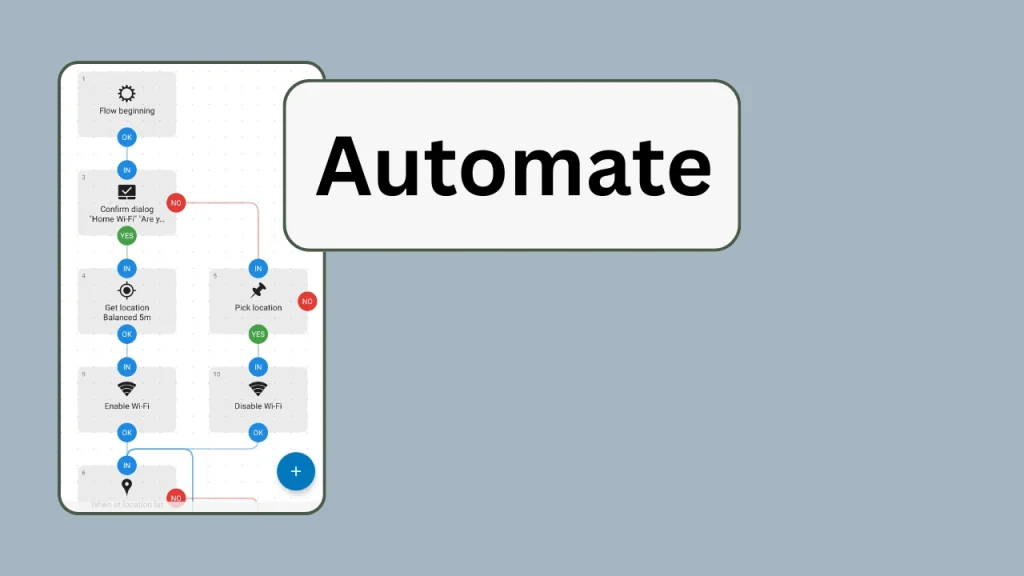
Table of Contents
What is Automate?
Automate is an Android automation application developed by LlamaLab. It allows you to automate routine tasks on your smartphone or tablet by building visual flowcharts. Instead of writing complex code, you connect building blocks on a canvas to create what the app calls a flow.
Each block performs a specific action or checks a condition, such as detecting your location, reading a notification, or changing a device setting. Whether you want basic everyday tweaks or advanced conditional workflows, Automate gives you complete control over your Android device.
Features of Automate
Automate is packed with features that make smartphone automation simple and flexible:
- Flowchart Builder: Create workflows visually by arranging blocks and drawing connecting lines between them.
- Over 410 Building Blocks: Access a massive selection of pre-made blocks covering device settings, file management, sensors, network connectivity, and app integrations.
- Community Library: Save time by downloading ready-made flows created by other users in the community section. You can explore shared flows on the Automate Community Page.
- Context-Aware Triggers: Set tasks to run automatically based on time of day, location, Wi-Fi status, battery level, calendar events, or physical movement.
- External App Integration: Automate works seamlessly with Tasker and Locale plug-ins, HTTP requests, shell commands, and Android intents.
- Manual Control Options: Launch tasks manually using home screen widgets, shortcuts, quick setting tiles, floating buttons, or hardware buttons.
- Built-In File Management: Copy, move, rename, compress, or back up your files locally or to cloud services like Google Drive and FTP servers.
Requirements
To run Automate smoothly on your device, check these basic requirements:
- Operating System: Android 4.0 or higher (newer Android versions are recommended for full feature availability).
- Storage Space: At least 20 MB of free internal storage space for app installation and saved flows.
- Device Permissions: Depending on what your flows do, the app may request permissions for Location, Storage, Contacts, Camera, SMS, Accessibility Service, or Device Administrator access.
- Internet Connection: Needed for downloading community flows, sending emails, and executing web requests.
Download
You can safely download Automate on your device through official sources:
- Google Play Store: Open the store on your device and search for Automate by LlamaLab, or visit the official page on the Google Play Store.
Install
Installing and setting up Automate takes just a couple of minutes:
- Download the App: Tap the Install button on the app page in the Google Play Store.
- Grant Necessary Permissions: When you open Automate for the first time, grant the requested permissions so your flows can interact with your device settings.
- Enable Startup Run: To keep your automated workflows running continuously, tap the menu icon in the top left corner, go to Settings, and check the option for Run on system startup.
How to Use
Creating your first automation flow in Automate is straightforward once you get the hang of connecting blocks:
- Create a New Flow: Open the app and tap the plus icon to start a new blank flowchart canvas.
- Add Blocks: Tap the block library icon to browse categories such as Connectivity, Sound, Interface, or Logic.Select a block (for example, Wi-Fi set state) to place it on your canvas.
- Configure Settings: Tap on any block you placed to adjust its settings, such as picking whether to turn Wi-Fi on or off.
- Connect the Dots: Draw a line from the output dot of one block to the input dot of the next block. Every flow must start from the default Flow beginning block.
- Save and Start: Tap the checkmark icon to save, give your flow a name, and press the Start button. Your flow is now running in the background!
For full descriptions of every block and function, check out the Automate Documentation.
Troubleshooting
If a flow is not triggering or stops unexpectedly, try these practical fixes:
- Check Missing Permissions: If a block requires special access (like Accessibility or Location), Automate will stop and log a warning. Make sure all requested permissions are turned on in your device settings.
- Disable Battery Optimization: Aggressive Android battery saver features can stop background apps. Go to your phone Settings > Battery Optimization and set Automate to Unrestricted or Don’t Optimize.
- Enable Accessibility Service: Some actions (like reading screen content or interacting with buttons) require Accessibility permissions. Verify this setting under Android Settings > Accessibility.
- Inspect the Flow Log: Open your flow in the app and tap the Log tab. This shows step-by-step execution details so you can see exactly where an error occurred.
Credit
All product design, updates, and development credits for Automate belong to LlamaLab. They have built a flexible and reliable application that gives everyday users complete power over their Android smartphones.
FAQs
Yes, Automate is free to download and use. The free version allows you to run flows containing up to 30 blocks simultaneously. An in-app upgrade is available if you want to remove block limits for longer, complex flows.
No, root access is not required for most tasks. However, rooted devices or devices running ADB privileged services can unlock additional system-level blocks.
Yes, Automate is a trusted app available on the Google Play Store. It only performs tasks and changes settings that you specifically configure in your own flows.
You can ask questions and get help on the Automate Reddit Community or the Automate Google Forum.
Conclusion
Automate by LlamaLab is one of the most useful and user-friendly automation tools available for Android. By using visual flowcharts, it breaks down complex device control into simple building blocks that anyone can learn to set up.Whether you want to save battery life, streamline notifications, or organize files automatically, Automate gives you the tools to make your phone work for you.
What kind of automation flows are you planning to build on your phone? If you have any questions or tips to share, please leave a comment below!