Android customization has reached a new level of flexibility, allowing users to alter how individual apps see their hardware. If you want to unlock high-refresh-rate modes, bypass hardware checks, or protect your privacy by masking your device identity, a specialized tool is essential.
This blog post explores COPG, a powerful Zygisk module designed for rooted Android devices. You will learn what it is, its core features, system requirements, how to download and install it, usage steps, troubleshooting tips, and frequently asked questions.
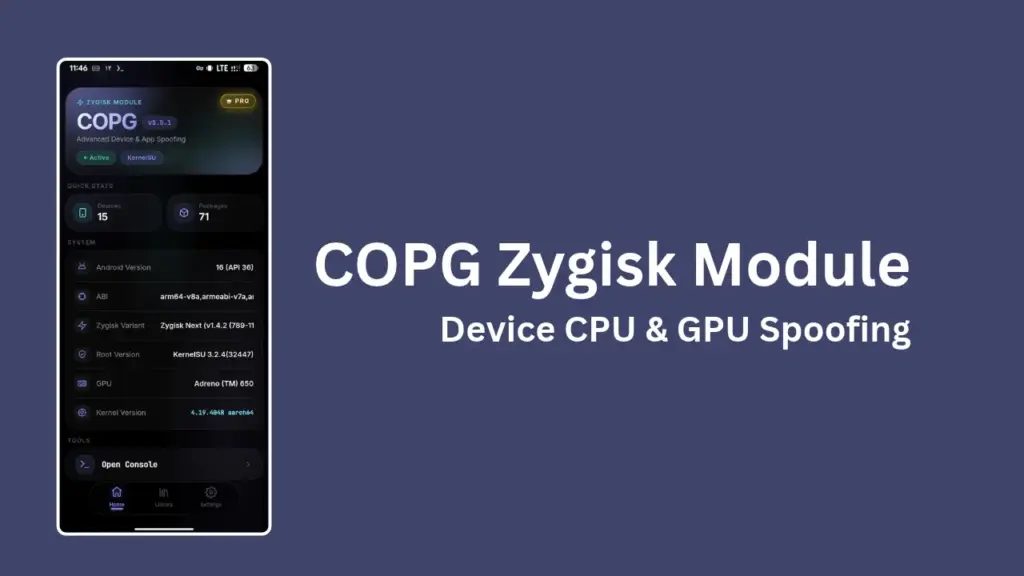
Table of Contents
What is COPG
COPG stands as an advanced per-app device, CPU, and GPU spoofer built specifically for rooted Android devices. Operating as a Zygisk module compatible with KernelSU, Magisk, and APatch, it allows users to trick specific applications into believing they are running on different hardware models or flagship devices. This is particularly useful for unlocking hidden graphical settings, high-FPS options in games, or bypassing device restrictions without modifying your system partition globally.
Features of COPG
This platform comes packed with numerous capabilities divided into free and professional tiers:
- Per-App Device Profiles: Change brand, model, fingerprint, and build properties for individual apps so each application sees a different device.
- CPU and GPU Spoofing: Modify reported processor and graphics hardware to match flagship standards for demanding applications.
- Per-App Refresh Rate: Force custom display refresh rates like 120Hz or 144Hz for apps and games that gate visual smoothness.
- Privacy Protections: Hide VPN connections, developer options, and USB debugging to pass strict checks from banking and security-sensitive apps.
- Install Patches: Disable signature verification, allow package downgrades, and bypass installer restrictions system-wide.
- Advanced Options: Includes GPS location spoofing, mock location hiding, custom carrier details, advertising ID isolation, and per-app proxy routing.
Requirement
Before you attempt to set up or use this tool, ensure your device meets the following prerequisites:
- A rooted Android smartphone or tablet.
- A root manager that supports Zygisk, such as Magisk, KernelSU, or APatch.
- An active Zygisk environment enabled within your root manager settings.
- Sufficient storage space and a file manager app to handle zip files.
Download
To get the latest version of the module, visit the official GitHub repository or the official developer website. Look for the latest release zip file matching your requirements. Ensure you download files only from trusted official sources to keep your device secure from modified or malicious packages.
Install
Installing the module is straightforward if your root environment is properly set up:
- Open your root manager application such as Magisk, KernelSU, or APatch.
- Navigate to the modules section within the manager interface.
- Tap on the option to install from storage or select the downloaded module zip file.
- Wait for the flashing process to complete successfully.
- Reboot your device to activate the Zygisk module.
How to use
Once your device restarts following the installation, managing the tool is handled through its dedicated interface:
- Open the on-device WebUI interface provided by the module.
- Browse your installed applications list to select the specific app you want to target.
- Toggle the desired spoofing options, such as device profiles, CPU models, or privacy hides.
- Apply your settings and restart the targeted app to see the changes take effect immediately.
Credit
This project is developed and maintained by AlirezaParsi along with open-source contributors and community developers who provide updates, bug fixes, and feature expansions for the rooting community.
Troubleshoot
If you encounter issues while using the module, try these common solutions:
- Bootloop or System Freeze: If a module causes a bootloop, enter recovery mode and remove the module zip from the modules directory, or use your root manager’s safe mode features.
- Spoofing Not Working: Verify that Zygisk is actively running and enabled in your root manager settings, then restart your device.
- App Crashes: Some aggressive spoofing options may trigger anti-cheat protections in specific games. Disable high-risk resident hooks if an application crashes upon launch.
FAQs
Yes, root access and a working Zygisk environment are required because the module operates at the system level.
Basic prop and CPU spoofing are generally stealthy, but aggressive hooks like GPU or location spoofing can be flagged by strict anti-cheat systems. Use caution with online multiplayer games.
Configuration is managed through the built-in on-device WebUI provided after installation.
Conclusion
COPG offers an extensive suite of tools for users who want granular control over device identification, privacy settings, and app compatibility on rooted Android devices. By understanding its features, requirements, and proper installation steps, you can safely customize your mobile experience. If you found this guide helpful or have any questions, please leave a comment below.