Google Play Services and background processes are among the biggest battery hogs on Android devices. Even when your phone sits idle on a table, background services keep waking up the CPU, polling location data, transmitting telemetry, and draining power.
If you want complete control over your Android device’s battery consumption, the Frosty module is one of the most capable tools available today. In this complete guide, you will learn what Frosty is, its core features, hardware requirements, how to download and install it safely, how to use its WebUI, and how to fix common issues.
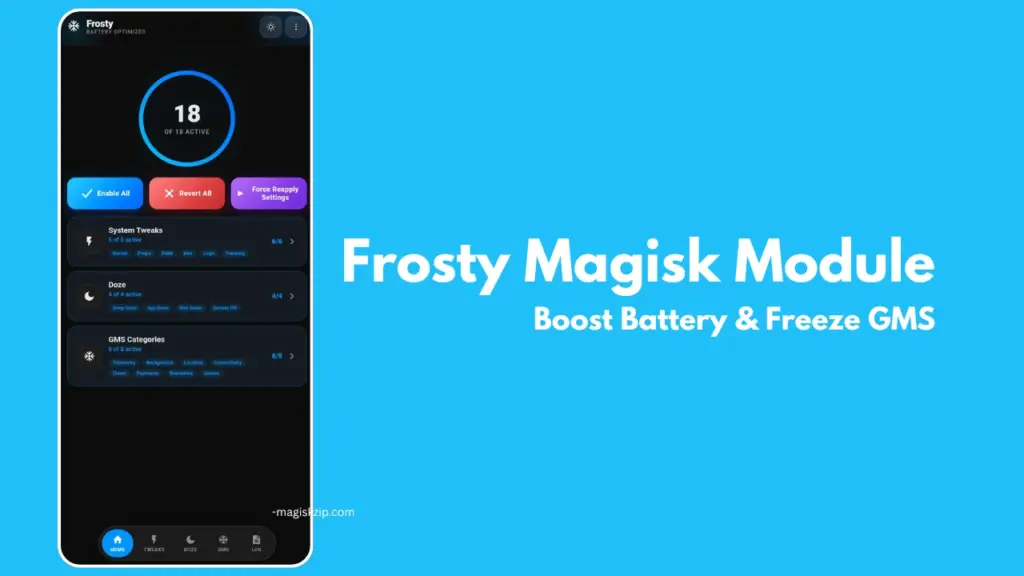
Table of Contents
What is Frosty?
Frosty is an advanced root module designed for Android devices running Magisk, KernelSU, or APatch. Developed by developer Drsexo, Frosty targets background power drain by giving users fine-grained control over Google Play Services (GMS), system doze settings, kernel options, and memory management.
Unlike older battery tweaks that run blindly in the background or break system stability, Frosty comes with an interactive WebUI (Web User Interface). This lets you toggle individual features on or off, configure delays, and whitelist essential apps so you get maximum battery savings without sacrificing everyday functionality.
Features of Frosty
Frosty groups its optimizations into distinct categories so you can customize every aspect of your phone’s behavior.
1. Granular GMS Freezing
Google Play Services is split into multiple service groups. Frosty allows you to freeze specific GMS categories across 8 distinct areas:
- Telemetry & Tracking: Disables analytics, ad tracking, Clearcut telemetry, and Phenotype polling without impacting daily app performance.
- Background Sync: Stops unnecessary background syncing activities.
- Optional Service Categories: Allows disabling location, cloud sync, connectivity services, Google Pay, wearable sync, and Play Games services if you do not use them.
2. App Doze and Deep Doze
- App Doze: Lets you remove any application (including Google Play Services) from Android’s default power-save exemption list.
- Deep Doze: Applies aggressive background restrictions to all installed apps. It offers two intensity modes:
- Moderate: Restructures doze constants, forces idle states on screen-off, kills wakelocks after 5 minutes, and restricts app standby buckets to “Rare”.
- Maximum: Further restricts standby buckets to “Restricted”, denies wake lock permissions, disables motion sensors when the screen is off, and immediately terminates wakelocks.
3. Screen Off Optimization
Automates device behavior the moment your screen turns off:
- Disables selected connections such as Wi-Fi, Bluetooth, Mobile Data, and Location after a customizable delay timer.
- Automatically restores all active connections as soon as you unlock your phone.
- Option to run an automated RAM cleaner after the screen turns off.
4. Kernel Tweaks & System Optimizations
- Kernel Tuning: Tweaks CPU schedulers, virtual memory (VM), network parameters, and disables unnecessary kernel debug logs.
- RAM Optimizer: Features ZRAM auto-tuning, custom Low Memory Killer (LMK/LMKD) and Pressure Stall Information (PSI) thresholds, disables OEM memory reclaim bloat, and provides configurable RAM cleaning.
- System Properties & Log Killing: Disables Android debug flags and halts battery-draining background logging processes.
- Battery Saver Tuner: Customizes the exact behaviors triggered when Android’s built-in Battery Saver mode turns on.
Requirements
Before installing Frosty, ensure your device meets the following basic prerequisites:
- Operating System: Android 9.0 (Pie) or higher.
- Root Solution: Magisk version 20.4+, KernelSU, or APatch.
- Google Play Services: Required if you plan to use the GMS freezing features. (Note: Non-GMS features like kernel tweaks, system props, RAM optimizer, log killing, and Deep Doze still work on de-Googled devices).
- WebUI Access Tool: Magisk users should have WebUI-X or a compatible WebUI manager installed to open the configuration dashboard.
Download
Always download the official, untampered module directly from the developer’s original distribution page:
- Access the latest releases on the Drsexo Frosty Releases Page.
- Download the latest release .zip file to your phone’s internal storage.
Note: Per the GPL v3 license, official releases are only named Frosty. Avoid third-party builds from unverified sources to prevent system instability.
Install
Follow these steps to install Frosty on your rooted Android phone:
- Open your root manager app (Magisk, KernelSU, or APatch).
- Navigate to the Modules section.
- Tap Install from storage and select the downloaded Frosty zip file.
- Wait for the installation script to complete successfully.
- Reboot your device.
Once your phone reboots, Frosty will be installed. By default, all features inside Frosty are turned off after installation to ensure your device boots safely without unexpected behavior.
Check this also: Top 25 Best Magisk Modules in 2026
How to Use
Because every feature is turned off by default, you must manually select what you want to enable using the WebUI dashboard.
Accessing the WebUI
- KernelSU / APatch Users: Open your root manager app and launch the WebUI directly from the Frosty module card.
- Magisk Users: Open your root manager and access the dashboard through WebUI-X.
Recommended Configuration Workflow
- System Tweaks: Start by turning on Kernel Tweaks, System Props, and Log Killing. These provide safe, universal battery and RAM savings with zero risk of breaking app functionality.
- RAM Optimizer: Select Moderate mode if you want smoother multitasking, or Maximum mode if your priority is keeping background RAM usage minimal.
- Screen Off Optimization: Set your preferred delay timer (for example, 30 seconds to 2 minutes) and pick which connections (Wi-Fi, Bluetooth, Location) should turn off when the screen sleeps.
- App Doze & Whitelisting: Open the App Doze picker to add heavy background apps. If you notice delayed notifications for messaging apps like WhatsApp or Telegram, add those specific apps to the Deep Doze Whitelist inside the WebUI.
- GMS Categories: Carefully disable GMS categories based on your usage. Disabling Telemetry is completely safe for everyone. However, exercise caution with categories like Location or Cloud if you rely on maps, Google Sign-in, or Google Pay.
- Backup Config: Use the Import / Export feature in the WebUI to back up your custom configuration once you find your ideal settings.
Credit
The development of Frosty builds upon valuable work created by developers across the Android modding community. Acknowledgments listed by the author include:
- kaushikieeee: Creator of GhostGMS.
- gloeyisk: Creator of Universal GMS Doze.
- Azyrn: Creator of DeepDoze Enforcer.
- MoZoiD: Developer of the GMS Component Disable Script.
- s1m: Developer of SaverTuner.
Troubleshoot
If you run into issues after configuring Frosty, review these quick fixes:
- Delayed Push Notifications: Aggressive Doze settings can pause background sync for messaging apps. Open the Frosty WebUI, go to Deep Doze settings, and add your essential messaging and communication apps to the Whitelist.
- Google Pay, Fast Pair, or Maps Not Working: You likely disabled a GMS category required by those services. Re-enable the corresponding GMS group (Location, Payments, or Connectivity) inside the GMS Categories tab in the WebUI.
- WebUI Fails to Open on Magisk: Ensure you have the latest WebUI-X module or app installed. Alternatively, verify that root access permissions are properly granted to your WebUI manager.
FAQs
App Doze and Deep Doze restrict background activities to save power. To ensure critical apps send real-time alerts, add them to the Deep Doze whitelist using the WebUI editor.
GMS Doze has been merged into the general App Doze picker. Open the App Doze picker inside the WebUI and select Google Play Services to achieve the exact same effect under a unified interface.
Yes. Features such as Kernel Tweaks, System Props, RAM Optimizer, Log Killing, Screen Off Optimizations, and Deep Doze work on de-Googled devices. Only the specific GMS category options require Google Play Services to be installed.
No. Everything is toggled off by default upon installation. This safety measure ensures that your phone boots up normally and allows you to choose only the optimizations you need.
Conclusion
Frosty stands out as one of the most comprehensive and flexible battery-saving modules for rooted Android devices. By combining targeted GMS service freezing, intelligent screen-off automation, kernel tuning, and interactive WebUI management, it gives you complete authority over your device’s power drain and thermal performance.
Have you tried using Frosty on your phone yet, or do you have any questions about setting up the WebUI? Leave a comment below to share your battery results or ask for help with your configuration!