Managing unwanted applications on an Android device can sometimes feel like an endless chore. Whether you want to prevent distracting apps from staying on your phone or you need strict control over what gets installed on a rooted device, automated tools can make life much easier.
In this blog post, we are going to dive deep into a handy tool called Auto-Uninstaller, created by developer meerazi. We will break down what this tool does, explore its main features, outline the system requirements, guide you step-by-step through downloading and installing it, show you how to configure its settings, troubleshoot common issues, and answer frequently asked questions. By the end of this guide, you will have a clear understanding of how to automate app removal on your Android device using KernelSU.
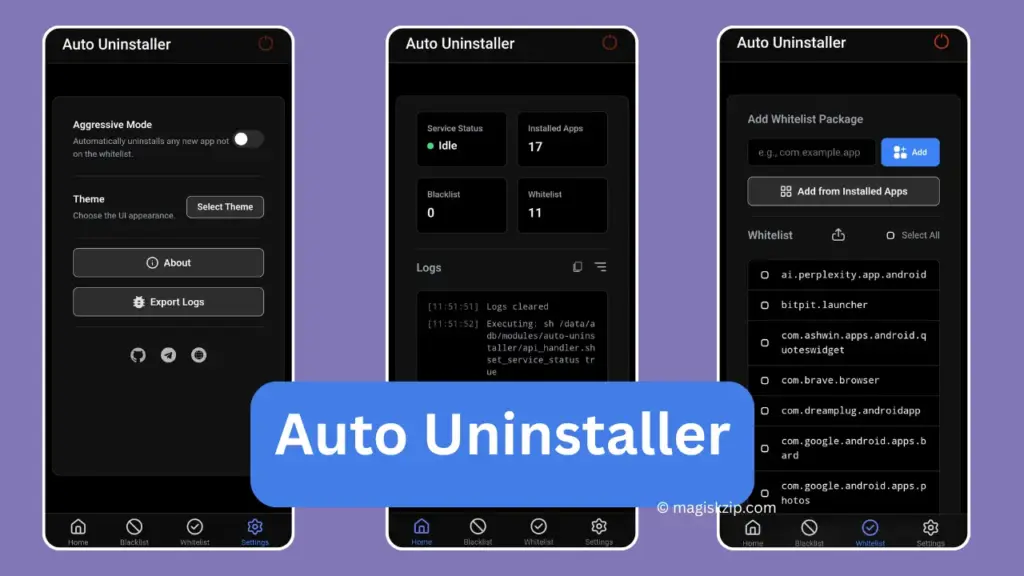
Table of Contents
What is Auto-Uninstaller?
Auto-Uninstaller is an open-source utility module created specifically for rooted Android devices running KernelSU. Developed by meerazi, this tool runs quietly in the background and automatically removes unwanted or unauthorized applications based on rules that you define.
Unlike standard uninstallation tools where you must manually find and confirm the removal of every single app, Auto-Uninstaller monitors your system package manager. When an app appears that matches your blocklist or fails to match your whitelist, the module immediately uninstalls it without requiring manual taps. It also features a built-in Web User Interface (Web UI) that you can open right inside your KernelSU manager app, making configuration simple and convenient.
Features of Auto-Uninstaller
Auto-Uninstaller comes packed with useful features designed to give you total control over app installations:
- Two Powerful Operating Modes:
- Blocklist Mode: The module continuously checks for specific applications that you have added to your blocklist. If any blacklisted app is detected on your phone, it is removed automatically.
- Aggressive Mode: The module takes restriction a step further. It automatically uninstalls any newly installed application unless that app is explicitly listed on your whitelist.
- Built-in Web UI Integration: You do not need to execute complicated command-line scripts or install third-party setup apps. You can access the entire control panel directly inside the KernelSU Manager app.
- Export and Import Settings: Easily back up your configured blocklist, whitelist, and activity logs. If you switch devices or perform a system reset, you can restore your saved configuration with a single tap.
- Custom Theme Support: The web interface supports Light mode, Dark mode, and your phone’s System default theme for comfortable viewing in any environment.
- Detailed Logs: The module records uninstallation history and background actions, allowing you to review exactly which apps were removed and when.
Requirements
Before you can run Auto-Uninstaller on your phone, make sure your device meets the following basic requirements:
- Rooted Android Device: Your device must be rooted with a compatible kernel setup.
- KernelSU Installed: Auto-Uninstaller is designed specifically as a KernelSU module and relies on the KernelSU Manager environment to run its Web UI.
- KernelSU Manager App: You need an updated version of the KernelSU Manager app installed to flash the module and access its control menu.
- Storage and Root Rights: KernelSU Manager must have root rights enabled so the module can execute background package uninstallation commands.
Download
To get the official Auto-Uninstaller package:
- Visit the official GitHub repository for the project under the developer name meerazi (auto-uninstaller).
- Head over to the Releases section on the repository page.
- Find the latest release version available.
- Download the flashable ZIP file directly to your phone’s internal storage or downloads folder.
- Keep the file as a compressed ZIP file without unzipping its contents.
How to Install
Installing Auto-Uninstaller follows the standard module flashing process for KernelSU:
- Open the KernelSU Manager app on your Android phone.
- Tap on the Modules tab located in the navigation menu.
- Tap the Install button or select Install from file.
- Navigate through your internal storage and select the downloaded Auto-Uninstaller ZIP file.
- Wait a few seconds while KernelSU flashes the module files.
- Once the flashing process completes, tap Reboot to restart your device and activate the module.
How to Use
After your phone reboots, setting up and configuring Auto-Uninstaller is quick and simple:
- Open KernelSU Manager after restarting your device.
- Go to the Modules section.
- Locate Auto-Uninstaller in your active module list and tap on it.
- Select the option to open its Web UI.
- Select your preferred mode:
- Choose Blocklist Mode if you only want to automatically remove specific unwanted apps.
- Choose Aggressive Mode if you want to block all new app installations except those you explicitly allow.
- Enter package names into your Blocklist or Whitelist accordingly.
- Save your settings. The module will now run silently in the background and enforce your uninstallation rules.
Credits
Full credit for creating and maintaining Auto-Uninstaller goes to developer meerazi (also known as MeRaazi on GitHub). The project is open-source and constructed using JavaScript, CSS, HTML, and Shell scripts to deliver a lightweight Web UI within the KernelSU environment. Special thanks also go to the KernelSU development community for providing the underlying module framework.
Troubleshooting
If you run into any issues while using Auto-Uninstaller, consider these common fixes:
- An important app was uninstalled automatically: Check whether you have Aggressive Mode turned on. If Aggressive Mode is enabled, make sure to add all trusted apps to your whitelist so the module does not flag them as unknown.
- Web UI fails to load: Ensure KernelSU Manager is updated to the latest version. Try force-closing KernelSU Manager and reopening it, or confirm that root access is functioning properly on your system.
- Module is not uninstalling targeted apps: Verify that your phone was restarted after installing the module. Double-check the exact package name in your blocklist to make sure there are no typos.
- Settings fail to save: Check if your internal storage has sufficient free space and that KernelSU has appropriate file write permissions.
FAQs
Auto-Uninstaller is built specifically to take advantage of the KernelSU Web UI framework. While standalone shell scripts exist in other root solutions, this specific module requires KernelSU for full Web UI functionality.
By default, the module focuses on user-installed applications. However, you should always double-check any package name before adding it to your blocklist to avoid targeting crucial system utilities.
If Aggressive Mode is active without whitelist entries, any new app installed on your phone will be removed immediately. Always populate your whitelist before turning on Aggressive Mode.
Yes, the project is completely open-source, allowing users to inspect the code. Because it holds root privileges to perform uninstallations, you should always review your blocklist and whitelist entries carefully before applying changes.
Conclusion
Auto-Uninstaller is an effective and lightweight tool for Android users who want automated control over the applications running on their phone. With its dual Blocklist and Aggressive modes, convenient KernelSU Web UI integration, and easy backup features, it removes the hassle of manually checking and deleting unwanted apps.
Whether you are trying to minimize distractions or maintain strict security on a rooted phone, this module provides a clean, hands-free solution.
What are your thoughts on Auto-Uninstaller? Do you prefer using Blocklist Mode or Aggressive Mode on your device? Please leave a comment below to share your experience or ask any questions!