If you are looking for a simple, private, and open-source way to connect your Android phone with your computer, Sefirah might be the exact tool you need. Built as a lightweight alternative to Microsoft Phone Link and KDE Connect, Sefirah makes it simple to sync your clipboard, receive phone notifications on your desktop, send SMS messages, transfer files, and even mirror your Android screen onto your PC display.
In this blog post, you will find a complete walkthrough of Sefirah. We will cover what Sefirah is, its main features, system requirements, where to download it, step-by-step installation instructions, how to pair your devices, key project credits, troubleshooting common connection issues, frequently asked questions, and more.
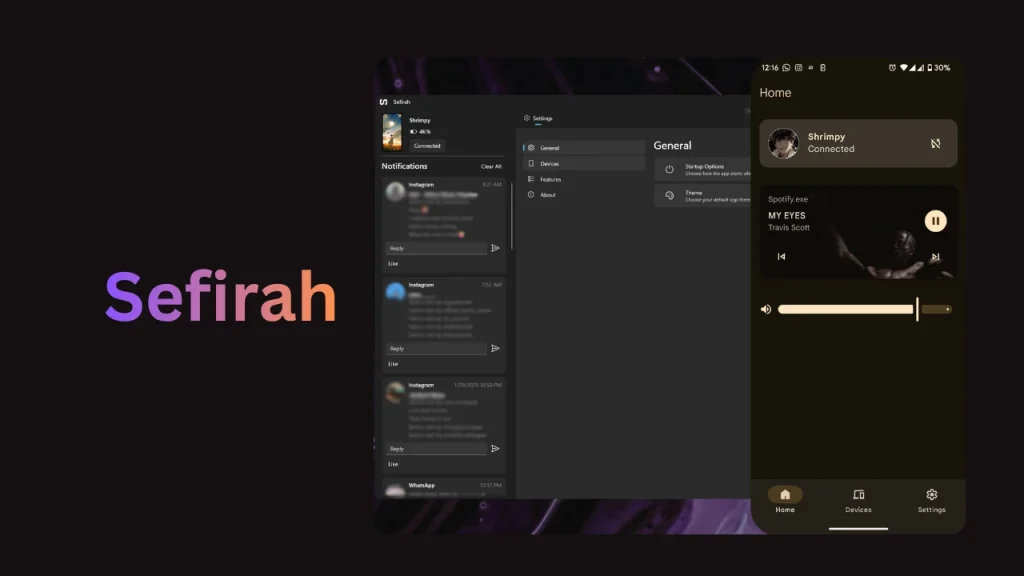
Table of Contents
What is Sefirah?
Sefirah is a free, open-source application developed by shrimqy that bridges the gap between your Android smartphone and desktop operating systems such as Windows and Linux.
Unlike proprietary phone-linking software that relies on third-party cloud servers, Sefirah works entirely over your local Wi-Fi network. This means your personal data, copied text, and notification logs stay private on your local network. It offers an efficient, distraction-free workflow for anyone who wants to stay updated on phone activity directly from their desktop screen.
Features of Sefirah
Sefirah brings together a wide range of integration tools into a clean, modern interface:
- Shared Clipboard: Copy text or images on your PC and paste them on your Android phone, or vice versa.
- Notification Sync: View incoming Android notifications as desktop pop-up toasts so you never miss an important alert.
- SMS Texting: Read and send SMS messages directly from your computer, with support for dual-SIM devices.
- Bluetooth Phone Calling: View incoming phone calls and answer them on your PC using Bluetooth.
- File Transfer: Share photos, videos, and documents between devices using system share sheets or simple drag-and-drop actions.
- Android Storage Integration: Access and browse your phone’s storage directly within Windows File Explorer like a connected USB drive.
- Media Playback Control: Use your phone as a remote control to pause, play, or adjust volume for desktop media players.
- Screen Mirroring: View and control your Android smartphone screen on your PC using integrated scrcpy support.
Requirements
To set up Sefirah smoothly, make sure your setup meets these basic requirements:
- Desktop PC: Running Windows 10 or Windows 11 (Linux support is also available with basic features).
- Android Device: Running Android 11 or higher for full feature support (especially storage integration).
- Local Network: Both your computer and smartphone must be connected to the exact same Wi-Fi router or local area network (LAN).
- Bluetooth Adapter (Optional): Required on your PC if you plan to use Bluetooth calling features.
- Scrcpy (Optional): Required on your PC if you want to use the screen mirroring feature.
Download
Sefirah requires two components: the desktop application for your computer and the companion mobile app for your Android device.
- Windows Desktop App: Download the installer or package from the official GitHub Releases page at https://github.com/shrimqy/Sefirah/releases or install it directly from the Microsoft Store.
- Linux Desktop App: Download the Linux binaries or AppImage directly from https://github.com/shrimqy/Sefirah/releases.
- Android Companion App: Download the mobile app from the Google Play Store or get the APK from IzzyOnDroid and GitHub Releases at https://github.com/shrimqy/Sefirah-Android/releases.
Install
Installing Sefirah on both devices takes only a few minutes:
- Install on Desktop: Run the downloaded installer on Windows or launch the package/AppImage on Linux.
- Install on Android: Download and install the Sefirah app from the Google Play Store or install the APK file.
- Grant Android Permissions: Open Sefirah on your phone. Follow the setup prompt to grant necessary permissions, including Notification Access, Storage Access, SMS permissions, and Accessibility Service (required for automatic clipboard sync).
Note: On Android 13 or newer, if system permissions appear greyed out for sideloaded apps, go to your phone Settings > App Info > Sefirah, tap the top-right menu, and tap “Allow Restricted Settings.”
How to Use
Once installed, pairing your Android phone with your PC takes just a few steps:
- Connect to Same Wi-Fi: Ensure both your Android phone and desktop PC are on the same Wi-Fi network.
- Open the Apps: Launch Sefirah on both your computer and your Android phone.
- Initiate Pairing: On your Android app, select Manual Connect or Auto Connect to search for your computer.
- Confirm the Security Key: A pop-up prompt will appear on your Windows desktop asking to accept the incoming connection. Verify that the security key shown on your phone screen matches the key on your PC screen, then click Accept.
- Start Using Features:
- Clipboard: Simply copy text on one device and paste it on the other.
- SMS: Select the Messages tab in the desktop application to view threads or send new texts.
- Storage: Enable storage access in the Android settings to view your phone inside Windows File Explorer.
- Screen Mirroring: Set the scrcpy file path inside Sefirah desktop settings and click the screen frame icon to mirror your smartphone display.
- Clipboard: Simply copy text on one device and paste it on the other.
Credit
Sefirah is powered by several open-source tools and community projects. Special recognition goes to:
- shrimqy: For developing and maintaining the main Sefirah desktop app and Android companion project.
- PrimalZed: For contributions on CloudSync, which enabled phone storage mounting inside Windows File Explorer.
- rom1v: Creator of Scrcpy, which powers Sefirah’s low-latency screen mirroring.
- KDE Connect Team: For their open-source Android SFTP implementation used in remote file management.
- XClipper: For concepts used in accessibility-based clipboard detection.
Troubleshoot
If you run into any issues during setup or daily usage, try these quick fixes:
- Devices Not Discovering Each Other: Double-check that both devices are on the exact same Wi-Fi network. If your router has “Wi-Fi Isolation” or “AP Isolation” enabled, turn it off so local devices can communicate with each other.
- Firewall Blocking Connection: Ensure your computer firewall permits connections on ports 5149 to 5169. You can manually add an inbound rule for Sefirah in Windows Defender Firewall if necessary.
- Android 15 Notification Restrictions: Android 15 hides sensitive notifications by default. To allow Sefirah to read sensitive notifications, connect your phone to a PC with ADB enabled and run this command:
adb shell appops set com.castle.sefirah RECEIVE_SENSITIVE_NOTIFICATIONS allow - Issues on OnePlus or Custom ROMs: On devices with aggressive background management, disable “System Optimization” or disable “Permission Monitoring” in Developer Options before granting permissions.
- Storage Mount Not Appearing: Ensure your phone runs Android 11 or higher and that storage permission is granted. Never point the storage mount to a desktop folder that already contains important files, as it needs an empty target location.
FAQs
Yes, Sefirah is completely free and released under the GNU General Public License v3.0 (GPL-3.0). The full source code is publicly accessible on GitHub.
No. Sefirah works locally over your private Wi-Fi network. Your notifications, files, texts, and clipboard items do not pass through external cloud servers.
Yes, Sefirah fully supports dual-SIM Android phones and lets you choose which SIM card to send text messages from.
No, Sefirah is tailored specifically for Android smartphones connecting to Windows or Linux desktop computers. iOS and macOS are not supported.
Conclusion
Sefirah offers a practical, privacy-respecting, and straightforward way to bridge your Android phone and desktop computer. From sharing clipboards and sending SMS to browsing phone storage and mirroring screens, it packs essential multi-device features into one unified tool.
Have you tried Sefirah yet, or do you have any questions about getting it set up? Please feel free to leave a comment below!