This blog explores Android Dex, an open-source project that lets you unlock a full desktop experience from any Android device over Wi‑Fi. Powered by scrcpy and Flutter, it offers wireless ADB, per‑app audio, and quick controls all without requiring root.
In this article, we’ll cover what Android Dex is, its features, requirements, how to download and install it, usage instructions, FAQs, troubleshooting tips, and more.
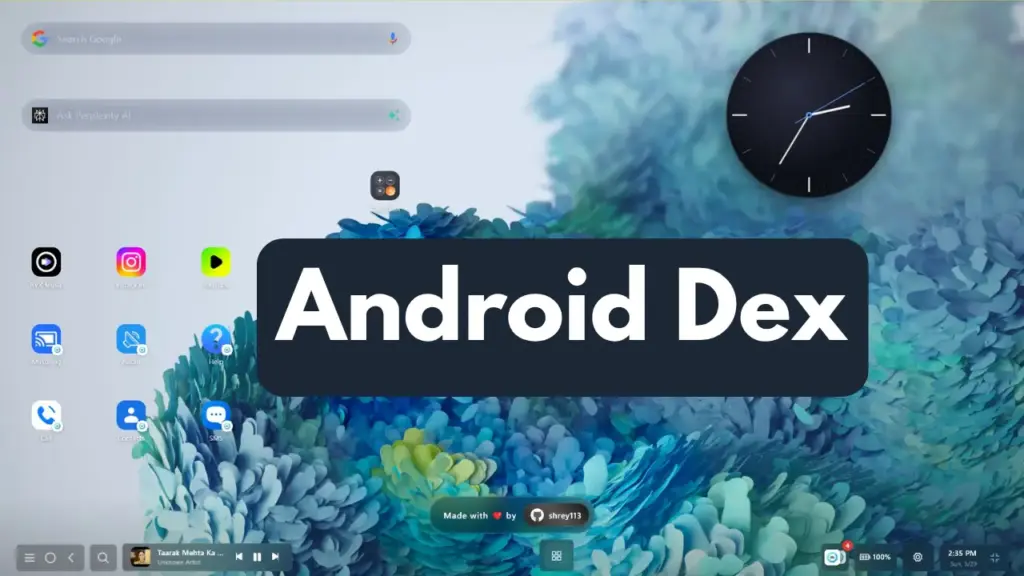
Table of Contents
What is Android Dex?
Android Dex is a tool that allows you to use your Android phone like a desktop computer. By connecting wirelessly to a Windows PC, it mirrors your device and provides a desktop-style interface. Unlike Samsung DeX, this project works across most Android devices and doesn’t require root access.
Features of Android Dex
- Wireless ADB connection (no cables needed after setup)
- Works without root
- Smooth screen mirroring and control via scrcpy
- Per-app audio management
- Quick controls for essential functions
- Compatible with Android 8.0 and above
Requirements
- Windows 10 or later
- Android device running Android 8.0+
- Developer options enabled (USB/Wireless Debugging)
- Both PC and phone connected to the same Wi‑Fi network
Download
You can get the latest release from the official GitHub repository: Android Dex Releases (github.com)
Installation
- Enable Developer Options on your Android device:
- Go to Settings > About Phone and tap Build Number seven times.
- Enable USB Debugging in Settings > Developer Options.
- Enable Wireless Debugging (optional for Wi‑Fi use).
- Download and run the Android Dex executable on your Windows PC.
- Connect your device via USB or Wi‑Fi. The app will auto-detect and connect.
How to Use Android Dex
- Launch the Android Dex app on your PC.
- Connect your phone via USB or Wi‑Fi.
- Once connected, the desktop interface will appear.
- Use the dashboard to open apps, manage audio, and control your phone.
- If multiple devices are detected, use the ADB Manager to select the correct one.
Troubleshooting Tips
- Make sure both devices are on the same Wi‑Fi network.
- Check that Developer Options and Wireless Debugging are enabled.
- Restart the Android Dex app if connection fails.
FAQs
No, it works without root.
Currently, it is designed for Windows.
Yes, it uses standard ADB protocols and scrcpy for secure connections.
Use the “Select Device” option in the boot screen to manually choose your device.
Ending
Android Dex is a powerful way to turn your Android phone into a desktop-like experience. With wireless connectivity, per-app audio, and quick controls, it makes multitasking easier and more productive.
If you try it out, leave a comment below to share your experience or ask questions.